Troubleshooting MakeMKV Backups: Fixing Failed Rips and Disc Errors
A rip failed halfway, or a disc won't open at all. Here's how to find out why, starting with the log.
You put in a disc, hit the button, and an hour later MakeMKV tells you it failed. I've been there. It's frustrating, especially when you're 80 GB into a 4K disc.
The good news is that it's rarely random. Nearly every failed rip comes down to one of a few things: the disc, the power going to the drive, a dirty lens, or a disc MakeMKV can't open yet. This page walks through all of them.
Why bother with backups at all
Quick detour, because it's the reason I care about getting this right.
Discs don't last forever. They scratch, they warp, and some of them go bad on their own even when they've sat on a shelf the whole time. Studios let titles go out of print. Streaming services pull movies without warning, and plenty of films have never been streamed in the first place. For a lot of titles, the disc in your hands is the best copy that exists.
A good backup is how those films survive. If you've got a shelf of discs that can't easily be replaced, ripping them and keeping the files in more than one place is a small act of preservation. It's worth an afternoon of troubleshooting when a rip won't cooperate.
If you haven't done a rip yet, start with how to back up your 4K Blu-ray library and come back here if something goes wrong.
Start with the log
The log is the text box at the bottom of the MakeMKV window. Most people ignore it. Please don't. It usually tells you what kind of problem you've got, and that saves a lot of guessing.
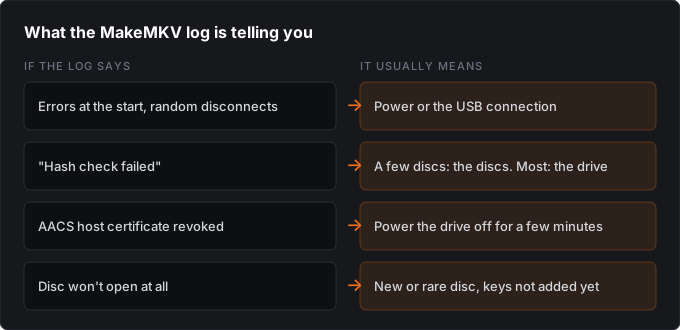
- Errors right at the start, or the drive disconnects at random. Nearly always power or the connection. Jump to Power and connection.
- "Hash check failed." The data wasn't read correctly. If it only happens on a couple of discs, it's those discs. If it happens on most of them, it's the drive.
- A message about the AACS host certificate being revoked. Power the drive off for a couple of minutes, and check the power. More on that below.
- The disc won't open at all. It may be a new release or a rare disc that MakeMKV doesn't have keys for yet. Jump to When the disc is too new.
Try a disc that worked before
Before you change anything, re-rip a disc you know ripped fine last time.
If it works, your drive and setup are okay, and the disc you were fighting with is the problem. If it fails too, something in your setup has changed. That one test cuts the list in half.
Look at the disc
Hold it up to a bright light and look through it. If you see pinholes or hazy spots in the data layer, that's a factory defect. Exchange the disc, because cleaning won't fix it.
If it looks fine, clean it:
- Wipe it with a soft, lint-free cloth, moving from the center straight out to the edge. Don't go in circles.
- For stubborn smudges, wash it gently under running water with a drop of Dawn.
- Dry it fully before it goes back in the drive.
Power and connection
How did you hook the drive up? This matters more than people expect. 4K slim drives pull a lot of power, and a drive that's short on it can shut down in the middle of a rip. It looks like a bad disc, but it isn't.
- Plug straight into a USB port on the back of the computer. Skip front-panel ports, hubs and extension cables.
- If you need a hub, make it a powered one.
- A dual-USB (Y) cable can help too.
Unplug it for a bit
Pull the power on the drive completely, wait a minute or two, and then reboot the computer. Closing and reopening MakeMKV isn't enough. A real power-off clears glitches that a software restart leaves behind, and it's the fix for the revoked-certificate message.
Think about the lens
When you installed the drive, is there any chance you touched the lens? A fingerprint or some dust on the laser lens will cause read errors, and they show up on every disc you try. If that sounds like your setup, a lens cleaning disc is the gentle first thing to try. I wouldn't poke at the lens with a swab unless you're careful.
Settings that help
Raise the read retries
Go to Preferences > IO and set the read retry count to around 15. MakeMKV will try harder on a rough patch before it gives up. Rips of damaged discs get slower, but more of them finish.
Save to a fast local drive
Rip to an internal drive, not a network share or a slow external. If MakeMKV reads faster than the destination can write, you can run into problems.
Rip just the main movie
If a full backup fails, select only the main title. A bad spot in some bonus feature you'll never watch won't stop the rip.
Check your version
If a new version of MakeMKV seems to be misbehaving for you, you can go back to an older one. I'm on 1.18.3 and it's been solid. It's worth keeping the installer for whatever version works for you.
When the disc is too new
If it's a new release or a rare disc, MakeMKV may not be able to open it yet. It needs the keys for each disc, and those get added over time.
You've got two options.
- Wait a few days. New discs usually show up fast. Update MakeMKV when a new version comes out, since that's how most of them get added.
- Update the keys yourself. You can manually update the
KEYDB.cfgfile from community sources, like the MakeMKV forums, the MakeMKV subreddit or online key databases.
Updating KEYDB.cfg
- Download the latest key database from a community source. It normally comes as a zip.
- Extract it. MakeMKV can't read the zip, only the extracted
KEYDB.cfg. - Drop
KEYDB.cfginto MakeMKV's data folder. That's usually a.MakeMKVfolder in your home folder (on Windows,C:\Users\<your name>\.MakeMKV). On a Mac, people report both~/.MakeMKVand~/Library/MakeMKV, so check which one exists on your machine. - On Mac and Linux, name it
KEYDB.cfgin capitals, since file names are case-sensitive there. - Quit MakeMKV, open it again, and try the disc.
A heads up: this doesn't work every time. The database changes constantly, so an old copy won't have newer discs. MakeMKV also leans on its own keys, so some discs just won't open until it adds them. If yours is one of those, waiting is the only fix.
The MakeMKV forum is the best place to see what other people are running into with a particular disc.
Still stuck?
Copy the exact error from the log and search for it on the forum. Somebody has almost certainly run into it. If most of your discs fail even after you've checked the power, the lens and the settings, the drive itself may be on its way out, and it's time to look at a different one.